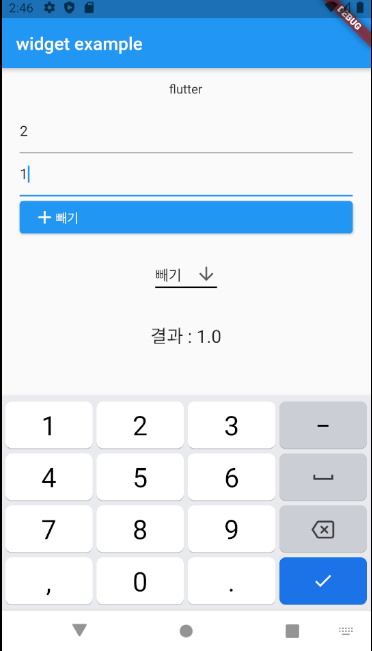
위젯을 사용하는데 MaterialApp과 Scafford 등 여러가지 사용할 수 있는 베이스 디자인이 있었고 이에 대한 차이는 잘 모른채 사용했었습니다. 이번 기회에 정리하였습니다.
1. 스캐폴드를 이용한 머티리얼 디자인 적용
1) 머티리얼 디자인이란?
- 구글에서 2014년부터 사용한 플랫 디자인 지침입니다.
- 머티리얼 디자인을 통해 통일된 디자인 지침이 만들어 졌습니다.
- 단색 위주의 간결한 디자인을 바탕으로 앱의 용량을 줄이고 동시에 속도를 개선할 수 있습니다.
- 안드로이드 앱 사용자는 머티리얼 디자인 덕분에 직관적이고 일관된 UI를 경험할 수 있게 되었습니다
2) 스캐폴드 이용하기
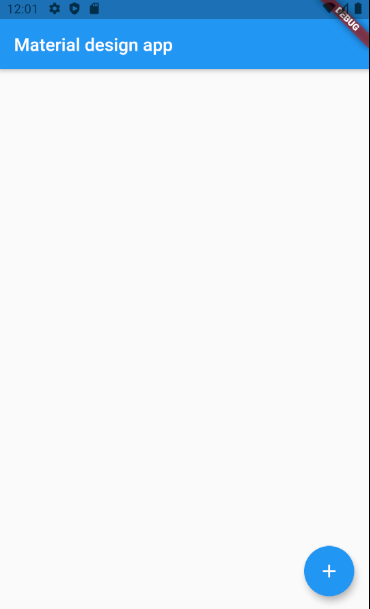
플러터 앱을 제작할 때 머티리얼 디자인을 적용하려면 스캐폴드 클래스를 이용합니다. 스캐폴드 클래스는 각종 위젯을 머티리얼 디자인 레이아웃으로 설계하는 것을 돕는 역할을 합니다.
import 'package:flutter/material.dart';

void main() {
  runApp(MyApp());
}

class MyApp extends StatelessWidget{
  @override
  Widget build(BuildContext context){
    return MaterialApp(
      title: 'flutter demo',
      theme: ThemeData(
        primarySwatch: Colors.blue,
      ),
      home: MaterialFlutterApp(),
    );
  }
}

class MaterialFlutterApp extends StatefulWidget{
  @override
  State<StatefulWidget> createState(){
    return _MaterialFlutterApp();
  }
}
class _MaterialFlutterApp extends State<MaterialFlutterApp>{
  @override
  Widget build(BuildContext context){
    return Scaffold(
      appBar : AppBar(title: Text('Material design app'),),
      floatingActionButton: FloatingActionButton(
        child: Icon(Icons.add),
        onPressed: (){},
      ),
    );
  }
}
2. 이미지와 폰트 추가
이미지 추가
1) 프로젝트 폴더 아래에 image 폴더를 만듭니다.
2) pubspec.yaml 파일에 아래 예시와 같은 형식으로 이미지 정보를 추가합니다.
//pubspec.yaml

flutter:
	assets:
     - image/flutter_logo.png
3) 이미지 호출방법
- file : 외부 폴더나 갤러리에 있는 파일 사용할 경우
- asset : 앱을 만들 때 미리 넣어놓은 파일을 사용하는 경우
- memory : 배열이나 문자열 형태의 이미지 데이터를 사용하는 경우
//image 폴더에 미리 넣어놓았으므로
... 생략 ...

class MaterialFlutterApp extends StatefulWidget{
  @override
  State<StatefulWidget> createState(){
    return _MaterialFlutterApp();
  }
}
class _MaterialFlutterApp extends State<MaterialFlutterApp>{
  @override
  Widget build(BuildContext context){
    return Scaffold(
      appBar : AppBar(title: Text('Material design app'),),
      body: Container(
      //이미지 불러오기
        child: Image.asset('image/flutter_logo.png'),
      ),
    );
  }
}- 이미지 크기 조절 시 fit을 사용할 수 있습니다
...생략...

Image.asset('image/flutter_logo.png',width: 200, height:100, fit: BoxFit.fill);

...생략...- fit 옵션값
- BoxFit.fill : width, height 꽉 채웁니다.
- BoxFit.contain : 이미지 잘리지 않고 비율 변하지 않는 범위에서 가능한 크게 그립니다.
- BoxFit.cover : 비율 유지한 채 지정 범위를 모두 덮도록 그립니다. 이미지가 잘릴 수 있습니다.
- BoxFit.fitWidth : width를 꽉 채워서 그립니다. 이미지가 잘릴 수 있습니다.
- BoxFit.fitHeight : Height를 꽉 채워서 그립니다. 이미지가 잘릴 수 있습니다.
- BoxFit.none : 원본 이미지를 표시합니다. 이미지가 잘릴 수 있습니다.
- BoxFit.scaleDown : 전체 이미지가 나올 수 있게 이미지 크기를 조절해서 표시합니다.
폰트 추가
1. 프로젝트 아래에 font 폴더를 만들고 폰트 파일을 끌어서 넣는다. 보통 tff 파일
2. pubspec.yaml에 폰트를 추가합니다.
flutter:
	fonts:
     - family: Pacifico
       fonts:
       	- asset: font/Pacifico-Regular.ttf
          weight: 400
3. 방금 추가한 폰트로 텍스트 추가하기
//fonts 폴더에 미리 넣어놓았으므로
... 생략 ...

class MaterialFlutterApp extends StatefulWidget{
  @override
  State<StatefulWidget> createState(){
    return _MaterialFlutterApp();
  }
}
class _MaterialFlutterApp extends State<MaterialFlutterApp>{
  @override
  Widget build(BuildContext context){
    return Scaffold(
      appBar : AppBar(title: Text('Material design app'),),
      body: Container(
      //폰트 불러오기
        child: Text('hello', style: TextStyle(fontFamily: 'Pacifico',
        				fontSize: 30, color: Colors.blue),)
      ),
    );
  }
}
3. 계산기 앱 만들기
덧셈 계산기
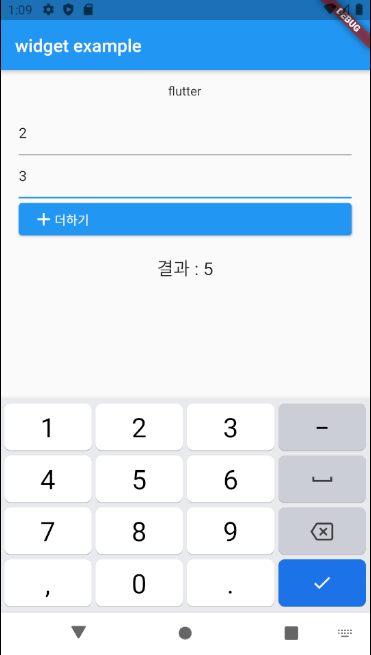
간단하게 덧셈이 가능한 계산기를 만들어 보았습니다.
- 텍스트 입력은 TextEditingController value1 = TextEditingController(); 를 선언한 후에 TextField의 controller에 넣어줘야합니다.
- int.parse(문자열)로 문자->숫자로 형변환이 가능합니다. (as int도 가능합니다.)
import 'package:flutter/material.dart';

void main() {
  runApp(MyApp());
}

class MyApp extends StatelessWidget{
  static const String _title = 'widget example';

  @override
  Widget build(BuildContext context){
    return MaterialApp(
      title: _title,
      home: WidgetApp(),
    );
  }
}

class WidgetApp extends StatefulWidget{
  WidgetApp({Key? key}): super(key: key);

  @override
  State<StatefulWidget> createState(){
    return _WidgetApp();
  }
}
class _WidgetApp extends State<WidgetApp>{
  String sum = '';
  //입력 컨트롤러
  TextEditingController value1 = TextEditingController();
  TextEditingController value2 = TextEditingController();

  @override
  Widget build(BuildContext context){
    return Scaffold(
      appBar : AppBar(title: Text('widget example'),),
      body: Container(
        child: Center(
          child: Column(
            children: <Widget>[
              Padding(
                padding: EdgeInsets.all(15),
                child: Text("flutter"),
              ),
              Padding(
                padding: EdgeInsets.only(left: 20,right: 20),
                child:  TextField(keyboardType: TextInputType.number,controller: value1,),
              ),
              Padding(
                padding: EdgeInsets.only(left: 20,right: 20),
                child:  TextField(keyboardType: TextInputType.number,controller: value2,),
              ),
              Padding(
                padding: EdgeInsets.only(left: 20,right: 20),
                child: ElevatedButton(
                  onPressed: (){
                    setState(() {
                      //int.parse()는 문자열을 숫자로 바꾸어 준다.
                      //contoroller의 text를 불러와야 입력한 값을 가져올 수 있다.
                      int result = int.parse(value1.text)+int.parse(value2.text);
                      sum = '$result';
                    });
                  },
                  child: Row(
                    children: [
                      Icon(Icons.add),
                      Text('더하기'),
                    ],
                  )
                )
              ),
              Padding(
                padding: EdgeInsets.all(15),
                child: Text(
                  '결과 : $sum',
                  style: TextStyle(fontSize: 20)
                )
              )
            ],
          ),
        )
      ),
    );
  }
}
뺄셈, 곱셈, 나눗셈 기능 추가
import 'package:flutter/material.dart';

void main() {
  runApp(MyApp());
}

class MyApp extends StatelessWidget{
  static const String _title = 'widget example';

  @override
  Widget build(BuildContext context){
    return MaterialApp(
      title: _title,
      home: WidgetApp(),
    );
  }
}

class WidgetApp extends StatefulWidget{
  WidgetApp({Key? key}): super(key: key);

  @override
  State<StatefulWidget> createState(){
    return _WidgetApp();
  }
}
class _WidgetApp extends State<WidgetApp>{
  String sum = '';
  //입력 컨트롤러
  TextEditingController value1 = TextEditingController();
  TextEditingController value2 = TextEditingController();

  //dropdown목록
  List buttonList = ['더하기','빼기','곱하기','나누기'];
  String dropdownValue = '더하기';

  Widget build(BuildContext context){
    return Scaffold(
      appBar : AppBar(title: Text('widget example'),),
      body: Container(
        child: Center(
          child: Column(
            children: <Widget>[
              Padding(
                padding: EdgeInsets.all(15),
                child: Text("flutter"),
              ),
              Padding(
                padding: EdgeInsets.only(left: 20,right: 20),
                child:  TextField(keyboardType: TextInputType.number,controller: value1,),
              ),
              Padding(
                padding: EdgeInsets.only(left: 20,right: 20),
                child:  TextField(keyboardType: TextInputType.number,controller: value2,),
              ),
              Padding(
                padding: EdgeInsets.only(left: 20,right: 20),
                child: ElevatedButton(
                  onPressed: (){
                    setState(() {
                      var value1Int = double.parse(value1.text);
                      var value2Int = double.parse(value2.text);
                      var result;

                      if(dropdownValue == '더하기'){
                        result = value1Int+value2Int;
                      }
                      else if(dropdownValue == '빼기'){
                        result = value1Int-value2Int;
                      }
                      else if(dropdownValue == '곱하기'){
                        result = value1Int*value2Int;
                      }
                      else if(dropdownValue == '나누기'){
                        result = value1Int/value2Int;
                      }
                      sum = '$result';
                    });
                  },
                  child: Row(
                    children: [
                      Icon(Icons.add),
                      Text(dropdownValue)
                    ],
                  )
                )
              ),
              Padding(
                padding: EdgeInsets.all(15),
                child:  DropdownButton<String>(
                  value: dropdownValue,
                  icon: const Icon(Icons.arrow_downward),
                  iconSize: 24,
                  elevation: 16,
                  underline: Container(
                    height: 2,
                    color: Colors.black,
                  ),
                  onChanged: (String? newValue) {
                    setState(() {
                      dropdownValue = newValue!;
                    });
                  },
                  items: <String>['더하기','빼기','곱하기','나누기']
                      .map<DropdownMenuItem<String>>((String value) {
                    return DropdownMenuItem<String>(
                      value: value,
                      child: Text(value),
                    );
                  }).toList(),
                )
              ),
              Padding(
                padding: EdgeInsets.all(15),
                child: Text(
                  '결과 : $sum',
                  style: TextStyle(fontSize: 20)
                )
              ),
            ],
          ),
        )
      ),
    );
  }
}